Choose your device
Select the device you have. We will flash its firmware, help you set Wi-Fi, and connect it to your account.
Sign in to bind the device to your account right here. Optional — flashing works without an account.
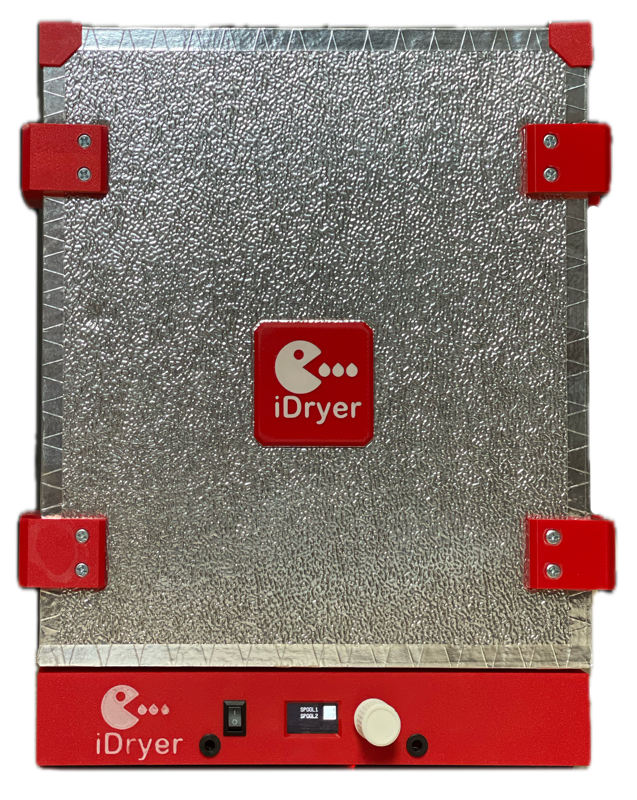 iDryer Controller
Flash iDryer Controller
Connect the iDryer Controller to your computer by USB and flash it here.
Wait for the firmware to complete its first boot. This is confirmed by a change on the device display or an LED backlight update. Then continue to the next step.
Connect your iDryer Controller to get started
Physical sequence for new hardware
- Enter BOOTSEL mode by holding BOOTSEL while connecting USB, or while pressing RESET.
- Select the correct SHT31 sensor address before flashing. In most cases this is 0x44.
- Then connect USB to Link and continue with Step 2 directly below.
Show details and help
Requirements
- Chrome, Edge, or another Chromium-based browser with WebUSB support
- iDryer Controller in BOOTSEL mode
- All serial tools closed: Arduino IDE, PlatformIO, Serial Monitor, and similar
Use UF2 flashing if WebUSB is unavailable
If WebUSB fails or the controller shows a warning icon in Device Manager, use the direct UF2 method instead.
Failed to claim interface?
- Close PlatformIO, Arduino IDE, or any serial terminal
- Disconnect the board, hold BOOTSEL, then reconnect USB
- On macOS, eject RPI-RP2 if Finder mounted it
- Try a different USB port or a known data cable
Erase firmware
If necessary, erase the flash and then flash the firmware again.
Windows note
The erase button below needs WebUSB. Without WebUSB, use the UF2 erase file from the Windows instructions modal.
Flash Link firmware
Link must be connected to the iDryer Controller and be connected to your computer by USB. You can also use this step on its own when you need to update Link firmware on an existing device.
- Designed for ESP32-C3 Super Mini.
- Wi-Fi configuration via Improv
- MQTT broker connection
- Real-time telemetry
- OTA updates support
After you press Flash, the browser asks for a port — pick your board. Flashing runs, and then in the same window a Wi-Fi field appears: enter your network and password. Do not close the window until the device reports it is connected.
Show details and help
What happens in Step 2
- Switch USB from the iDryer Controller to Link after the controller is flashed.
- Select the correct Link board before flashing firmware.
- Finish Wi-Fi setup through Improv after flashing completes.
Requirements
- Google Chrome, Microsoft Edge, or Opera with Web Serial support
- A USB data cable connected directly to the Link board
- No Serial Monitor, Arduino IDE, or other tool locking the port
Bind to your account
The firmware is loaded. Sign in to bind the device right here, or finish pairing in the iDryer app.
Device log
Open the iDryer app: App Store or Google Play
No phone at hand? Sign in and bind the device right here — it is still connected by USB.